Website Not Loading? How to Tell If It's Down for Everyone or Just You
A website or app won't load. Is it down for everyone, or is it your Wi-Fi, your DNS, your ISP or the site itself? A step-by-step way to find out — with free commands for Mac, Windows and Linux.
A website won't load. Slack keeps spinning. The company portal times out. The first question is always the same: is it down for everyone, or is it just me?
It matters because the fix is completely different. If the site is down, there is nothing to do but wait. If it's you, waiting fixes nothing — and the cause could be in at least five different places between your computer and the site. This guide walks through them in order, with free commands you can run on Mac, Windows and Linux, and what each result actually means.
In this guide: the five places a site can fail · is it just you? · DNS · the connection · the certificate · the server · the route · doing it in one click · the short version
The five places a website can fail
Every time you open a site, five things have to work, roughly in this order:
- Your own connection — your Wi-Fi or cable to your router, and your router's link to your ISP.
- DNS — turning the name (
example.com) into an address the computer can connect to. - The connection — reaching that address on the right port (443 for secure websites).
- The secure connection — the certificate that proves you're talking to the real site.
- The site itself — its server answering, quickly, without an error.
And underneath all of them runs the route: the chain of routers between you and the site, where packets can get lost. A failure at any step looks the same in a browser — "this site can't be reached" — which is why guessing rarely works. Checking each step in turn does.
Step 1: Is it just you?
The fastest single test: try the site from a different network. Turn off Wi-Fi on your phone and open it over mobile data. If it loads there, the site is up and the problem is somewhere on your side — your device, your network, your DNS or your ISP. If it fails on mobile data too, the site (or something close to it) is likely down for everyone.
That test has a blind spot: your phone and your laptop may both use the same DNS filter or the same VPN, and "works on my phone" doesn't say which of your five steps is broken. The next steps do.
Step 2: Does the name resolve — and to the right place?
Ask your own DNS server, then ask a public one directly, and compare:
nslookup example.com
nslookup example.com 1.1.1.1
(The same command works on Mac, Windows and Linux. 1.1.1.1 is Cloudflare's public DNS; 8.8.8.8 is Google's.)
What the answers mean:
- Both say the name doesn't exist ("NXDOMAIN", "can't find") — check the spelling first. If it's a company-internal name, it only exists in your organisation's DNS: connect to your work network or VPN and try again. For a public site, if another trusted public resolver (
8.8.8.8) also says it doesn't exist, the name probably isn't published in public DNS — if you believe it should be, double-check the spelling and the domain's own DNS records. - Yours says it doesn't exist, the public one finds it — your DNS server is blocking or out of date for that name.
- Yours answers
0.0.0.0or127.0.0.1, the public one gives a real address — the name is being deliberately blocked by a filter: a router's parental controls, a Pi-hole or ad-blocker, security software or your ISP. Allow-list it there if it shouldn't be blocked. - Yours times out, the public one answers instantly — your DNS server isn't responding, or something on your network is blocking queries to it. Either way most sites will be affected, not just this one. At home, restarting the router often fixes it, and setting your DNS to 1.1.1.1 or 8.8.8.8 works around it. On a work VPN or managed network, check with IT before changing DNS — company sites may only resolve through their servers.
- Both return addresses, even if they differ — name resolution is working. Big sites hand out different addresses to different places, so a difference alone is normal; if you suspect filtering or a wrong answer, compare with another trusted resolver.
More detail: DNS slow or not resolving.
Step 3: Can you connect at all?
DNS worked, so you have an address. Now try to open a connection to it on port 443:
# Mac and Linux
nc -vz example.com 443

# Windows (PowerShell)
Test-NetConnection example.com -Port 443
Two kinds of failure, and they mean different things:
- "Connection refused" — something answered and turned you away. Either nothing is listening on that port, or a firewall is actively rejecting you. For a device on your own network (a NAS, a printer, a router page), "refused" usually means the device is on but that service isn't running — or it uses another port (many home devices only serve plain web on port 80).
- Timed out — nothing answered at all. Something on the way is silently dropping the traffic: a firewall, a VPN, security software, or your ISP. Try with your VPN off (or on, for a work site), and from a phone hotspot to compare.
Step 4: Is the secure connection trusted?
A site can be up and reachable and still refuse to load because its certificate isn't trusted. Your browser usually says so ("Your connection is not private"). From a terminal:
# Mac and Linux
curl -sS -D - -o /dev/null https://example.com

# Windows (in PowerShell, type curl.exe — plain "curl" is a different command there)
curl.exe -sS -D - -o NUL https://example.com
(This sends a GET request, prints the response headers and discards the page body. Unlike a browser, curl doesn't run JavaScript or follow redirects — for a redirect, the location: line shows where it points.)
If the certificate is the problem, curl says so — for example SSL certificate problem: certificate has expired. What the reasons mean:
- Expired — the site's owner forgot to renew it. This is the site's problem, not your connection. (Also check that your computer's clock is right — a wrong date makes valid certificates look expired.)
- For a different name — you may have typed the wrong address, or reached the wrong server.
- Issued by someone you don't recognise — often your own antivirus "web protection", a company proxy or a network filter inspecting your encrypted traffic. On a work laptop that's usually intentional. See is my network inspecting HTTPS?
Step 5: Is the server answering — quickly?
When everything up to here works, the last question is what the site itself says. The same curl command shows the status line at the top:
- 200 — this request succeeded. The site is up and reachable; it doesn't prove every feature of the app works.
- 301 or 302 — a redirect. The
location:line shows where it sends you; that's normal (many sites redirectexample.comtowww.example.com). - 401 or 403 — the site answered, but wants you to sign in, or refuses this request (some sites refuse automated checks). Your connection to it is fine.
- 404 — the site answered, but that page wasn't found.
- 429 — "too many requests": the site is rate-limiting — your address, your account or that page. Common on shared office or VPN connections.
- 500, 502, 503, 504 — most likely a problem on the site's side: its servers, or a gateway or proxy in front of them (a 502 or 504 can also come from a company proxy on your side). Try again in a minute and from another network — if it fails there too, nothing on your side will fix it.
And sometimes it works, but slowly. The useful question is where the time goes: if connecting takes 30 ms but the server then thinks for three seconds before answering, the network is fine and the server is slow — useful to know before you restart your router for the fifth time.
Underneath: is the route losing packets?
If connections are flaky rather than failing outright, trace the route:
# Mac and Linux
traceroute example.com

# Windows
tracert example.com
Look for where loss starts and whether it continues to the destination. Loss that begins at the first hop and carries on may point to your Wi-Fi or router; loss that begins a few hops in and carries on to the destination often points to your ISP's network. But traceroute measures routers' replies to traceroute, not your actual traffic — routers answer those at low priority, and many limit them. So loss at one hop that later hops don't show is almost always that rate-limiting, not real loss. Confirm with repeated runs, and with what you actually experience, before blaming a router or your ISP. That single mistake sends more people chasing phantoms than any other — see traceroute mistakes and what causes packet loss.
Doing all of this in one click
Running five tools and reading the output takes time, and it's exactly when something is broken that you have the least of it. So we built it into NetworkTests Monitor, our free desktop app for Mac, Windows and Linux. Its Troubleshoot page runs every step above for any website, address or app — your connection (from the monitor's own live history), DNS against Cloudflare and Google, the connection, the certificate, the server's response and timing, and the route — and gives you one plain-English answer with what to try next.
Stop guessing why a website won't load. NetworkTests Monitor checks your connection, DNS, the secure connection, the site's response and the route — and tells you what the results mean. Download NetworkTests Monitor — free
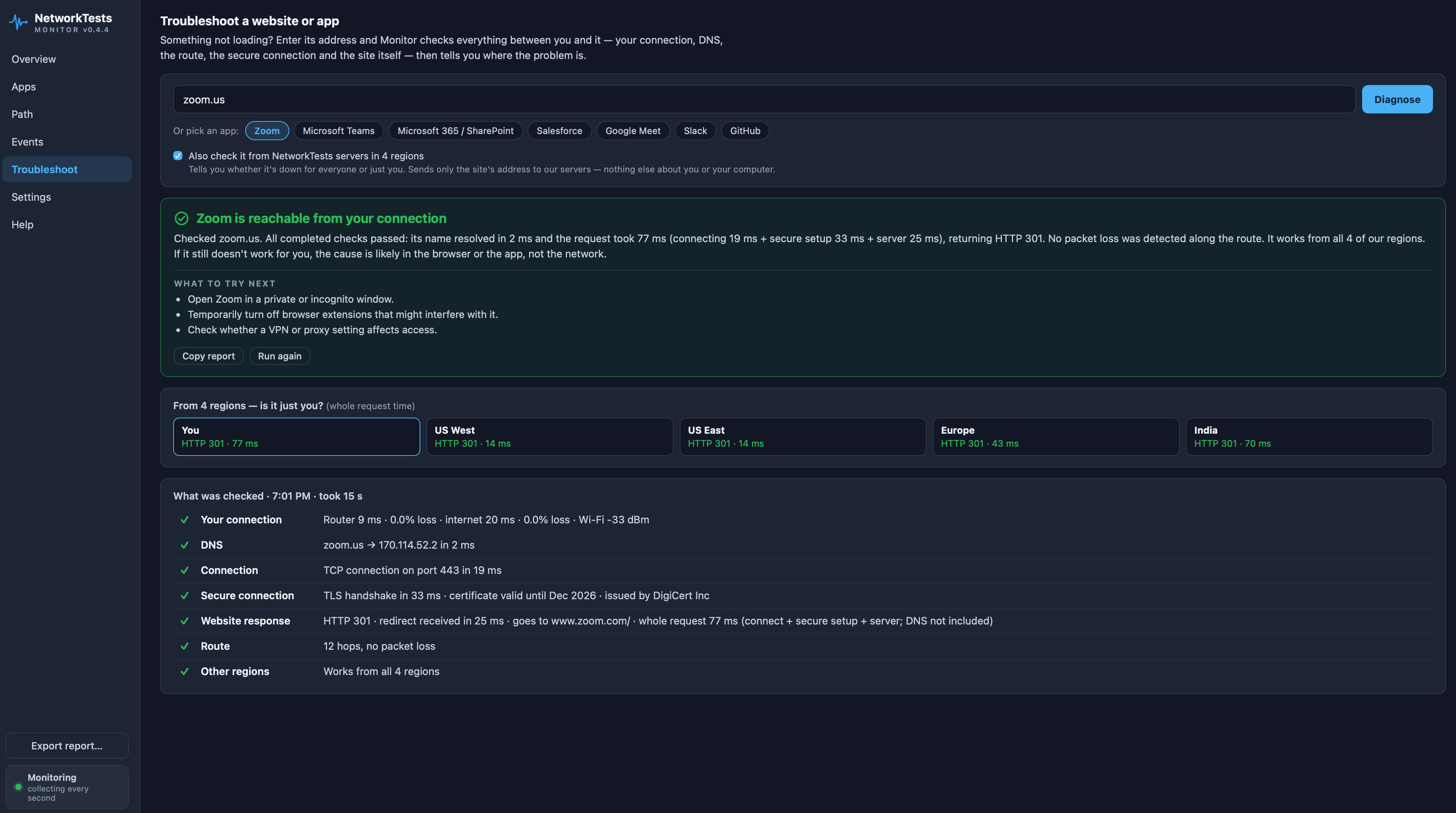
Tick "Also check it from NetworkTests servers in 4 regions" and our servers in US West, US East, Europe and India try the same address too. That helps tell a problem with your connection apart from one that also shows up from our tested regions. If the site fails from all of them too, the problem is likely with the service itself or something it depends on — strong evidence, though four regions can't prove it's down for every user worldwide. Only the address you entered is sent for that check — nothing else about you or your computer — and private or internal addresses never are.
When something is wrong, the answer says what and where. Here, the site's certificate has expired — so every browser refuses it, from every region, and there's nothing to fix on your side:
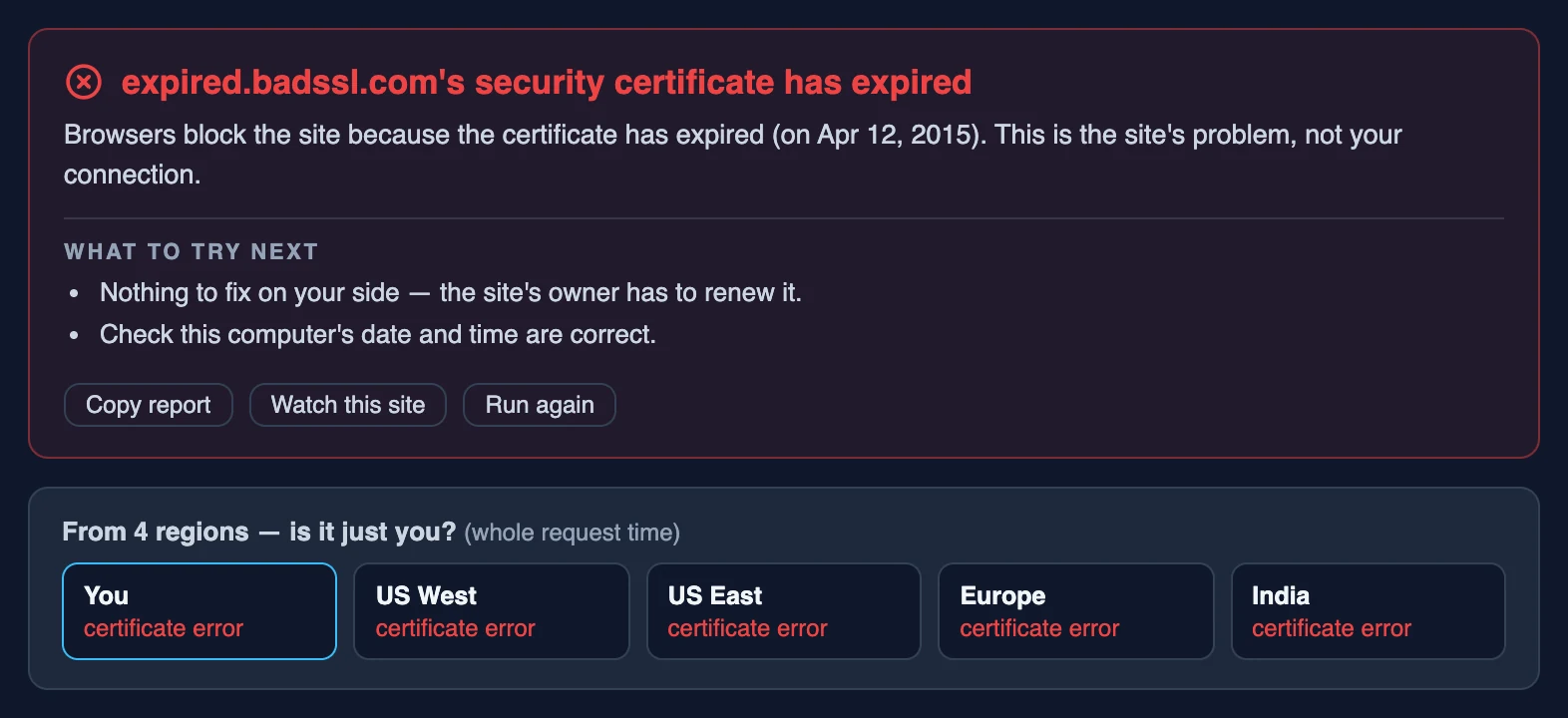
Other answers it gives, depending on what it finds: a name blocked by your DNS (with the filtered and real addresses side by side), your Wi-Fi dropping packets right now, loss starting inside your ISP (with the hop table as evidence), a slow server rather than a slow network, a site down for everyone, or a device on your network that's on but not listening on that port.
The short version
- Try another network (your phone on mobile data). Works there → it's your side.
- Compare DNS (
nslookup namevsnslookup name 1.1.1.1). Different → your DNS is the problem. - Test the port (
nc -vz/Test-NetConnection). Refused → nothing listening or rejected. Timeout → something dropping traffic. - Check the certificate (
curl -sS -D - -o /dev/null). Expired → the site. Unknown issuer → something inspecting your traffic. - Read the status code. 2xx/3xx → it answered. 4xx → it answered, but refused or couldn't find that page. 5xx → most likely the site's side; confirm from another network.
- Trace the route for flaky connections — only trust loss that continues to the end, and confirm it.
Or let NetworkTests Monitor do all six and tell you the answer. It's free for personal use, needs no account, and keeps its monitoring history on your computer.
More guides
NetworkTests Monitor — Continuous Monitoring That Names the Culprit
Free network monitoring for Windows, Mac and Linux. Continuously monitor packet loss, Wi-Fi, latency, applications and bufferbloat, identify where problems start, and export PDF evidence reports.
Your Bufferbloat Test Is Lying to You
A bufferbloat test run at a quiet moment tells you almost nothing — bloat is a busy-hours problem. How latency-under-load is measured, how to read the numbers, and how NetworkTests Monitor tests it automatically, for free.
What Wi-Fi Actually Costs You
Wi-Fi rarely costs you bandwidth. It costs you consistency — and that is what breaks calls and games. How to measure the real difference on your own connection.
Why Your VPN Slows Everything Down
Encryption is rarely the reason a VPN is slow on modern hardware. Distance, a busy exit server and MTU are — and MTU is the one that makes some sites hang forever while everything else works.